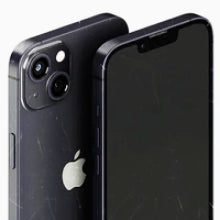



Wiping your old phone before trading it in keeps your accounts, photos, and saved logins under your control. If you're switching to a new device, transfer your data first, then erase the old one.
Before you start
A few minutes of prep saves an hour of troubleshooting later. Allow about 30 to 60 minutes for the full process, depending on your backup speed.
- Back up your device. Steps differ by phone, so use the official guide for yours: Back up your iPhone (Apple) or Back up your Android device (Google).
- Note your IMEI by dialling
*#06#on the keypad. We use it to confirm your device on arrival, and it's worth keeping for your own records. - Charge the phone to at least 70%.
- Connect to Wi-Fi.
- Have your account passwords ready. Reset at iforgot.apple.com or accounts.google.com if needed.
Switching to a new phone? Transfer your data first
Transfer happens on a working phone. Once you erase the old device, the data is gone, so transfer first and wipe last.
Android to iPhone
Use Apple's Move to iOS app. It copies contacts, messages, photos, videos, calendars, mail accounts, and free apps available on both stores.
- On your new iPhone, start setup. When you reach Quick Start, tap Set Up Manually, then Move Data from Android.
- On your old Android phone, install Move to iOS from the Play Store and open it.
- The iPhone displays a 6 or 10 digit code. Enter it on the Android.
- Connect both devices to the temporary Wi-Fi network the iPhone creates.
- Choose what to transfer, then wait for the iPhone's loading bar to finish before touching either phone.
- Finish iPhone setup. You can manually copy across music, books, and PDFs that didn't come over.
- Contact your carrier to transfer service or activate the eSIM on the new device.
iPhone to Android
The right tool depends on which Android phone you're moving to.
- Samsung Galaxy: install Smart Switch on the Galaxy. Transfer wirelessly (both phones on Wi-Fi) or via USB-C cable with the included adapter. Smart Switch can pull from iCloud or directly from the iPhone. Samsung's Smart Switch guide.
- Google Pixel: during Pixel setup, choose Set up as new, then Copy from iPhone. Use the included Quick Switch Adapter cable, or restore from iCloud after signing in. Pixel's transfer guide.
- Other Android (Oppo, Nothing, OnePlus, Motorola, etc.): install Google's Switch to Android app on the iPhone, sign into a Google account, choose what to copy, then scan the QR code shown on the new Android.
Before you transfer: turn off iMessage on the iPhone. Settings > Messages > iMessage. After the transfer, deregister at selfsolve.apple.com/deregister-imessage. This keeps SMS working when friends with iPhones text you.
iPhone or iPad: removing your data
Don't manually delete photos, contacts, or messages while signed in to iCloud. That deletes them from every device on your account. Use the steps below instead.
- Back up: Settings > [your name] > iCloud > iCloud Backup. Tap Back Up Now.
- Unpair Apple Watch (if paired): open the Watch app, tap All Watches, tap the (i) next to your watch, then Unpair Apple Watch. iCloud backs up the watch automatically.
- If you're switching to a non-Apple phone, turn off iMessage first: Settings > Messages > iMessage. Toggle it off so SMS keeps working when friends with iPhones text you.
- Sign out of iCloud and the App Store: Settings > [your name] > Sign Out. Enter your Apple ID password and confirm.
- Erase the device: Settings > General > Transfer or Reset iPhone > Erase All Content and Settings. Enter your passcode to confirm.
- Contact your carrier to release service. For an eSIM, transfer it to your new phone before erasing, or arrange reactivation with your carrier.
Erasing turns off Find My and Activation Lock automatically. We need both off to test and refurbish the device.
Android: removing your data
Menu names vary slightly by manufacturer (Samsung, Pixel, Oppo, Nothing), but the order is always the same: remove your accounts, then factory reset.
Before you reset: if you have a paired smartwatch (Galaxy Watch, Pixel Watch, Wear OS), unpair it first via its companion app on your phone. If you have a microSD card, pop it out and keep it. We don't need either to test or refurbish the phone.
- Back up: Settings > Google > Backup. Tap Back up now.
- Remove your Google account first. Settings > Passwords & accounts > Google > Remove account. Doing this before the factory reset disables Factory Reset Protection, which would otherwise lock the device after wipe.
- If you have a Samsung Galaxy, remove your Samsung account too. Settings > Samsung account > Sign out.
- Disable Find My Device. The toggle is usually in Settings > Google > Find My Device, but the path varies by brand. Google's Find My Device guide covers manufacturer-specific paths.
- Factory reset: Settings > System > Reset options > Erase all data (factory reset). Confirm.
- Once the wipe finishes, remove the device from your account at android.com/find.
Skipping step 2 is the most common mistake. The phone arrives still tied to your Google account, and the new owner (or our testing team) can't get past the lock screen.
Frequently asked questions
Should I transfer my data or wipe first?
Transfer first. Move to iOS, Smart Switch, and Switch to Android all read from a working source device. Once you erase the phone, the data is gone for good, so transfer first and wipe last.
What if I forgot my Apple ID or Google account password?
Reset it before you wipe. For Apple ID, visit iforgot.apple.com. For Google, visit accounts.google.com. You need the password to sign out cleanly. Trying to sign out without it leaves the device locked to your account.
Will OzMobiles wipe the device again on receipt?
Yes. Every device we receive goes through the 80-Point Phonecheck test, which includes a fresh data wipe. Wiping at your end first still matters: it gives you control over the timing and confirms nothing personal travels in transit.
What about my SIM card or eSIM?
Keep your physical SIM. Pop it out before sending. For an eSIM, transfer it to your new phone before erasing, or contact your carrier to arrange reactivation.
What if my phone won't turn on?
You have two options. The safer one: sign in to icloud.com/find or android.com/find from any computer, locate the device, and tap Erase. This wipes it remotely even with a broken screen or a dead battery. Then sign out on the same page so the device is no longer linked to you. The simpler one: send it as-is. Every device we receive goes through the 80-Point Phonecheck test, which includes a fresh data wipe.
What if I sent my device without wiping it?
Get in touch and we'll guide you through your options. Devices are queued for testing on arrival, so reaching us early gives the best chance to pause and confirm before the wipe runs.
Your data is safe with us
Even after you wipe your device, OzMobiles tests and erases every phone again as part of our 80-Point Phonecheck test. That's your safety net. If you missed a step, your data won't make it onto a refurbished device.
Get a quote online and send your device for free with the provided posting label.
Get a Trade-In Quote


